TouchSearch has got a major upgrade for those using 1.3-2. Many things were changed, most notably the look and feel of the widget. Gone is the (admittedly, ugly!) black box background and in is a very sleek semi-transparent background that is more consistent with the look of the built-in desktop widgets :
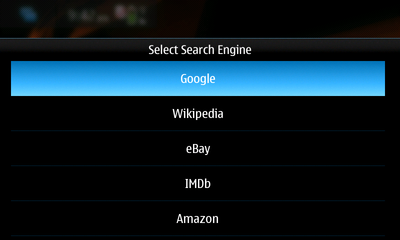
Also new in this version is the Configure Search Engines interface. This is available from the Widget Options and allows you to create, edit, delete and sort your search engines. Beware though, that the Add Search Engine option is still a bit untested and you may run into a few hiccups while trying to add search engines.
Here is the full changelog for those wondering :
- User can now Add, Edit, Delete and Sort search engines
- Widget now features a background with rounded corners and user-selectable opacity
- New integrated help system
- Added WebMD to search engines list
- Numerous bug-fixes and optimizations.
A simple widget to record the current phone conversation (AAC, 1 MB/min). Please be aware of local laws guiding the recording of telephone conversations!
Can also be used as a normal voice recorder.
Press ‘REC’ to start recording, make your call or record anything else using the in-built mic, press ‘REC’ again to stop.
Recordings are saved to MyDocs and can be played back through e.g. the File Manager.
Roadmap/ToDo (might get done someday):
- Make it look better
- Allow recording of bluetooth conversations
- Add option to choose saving location
- Add beeping option
Wishlist (no idea if possible or interest in doing it)
- Autostart
- Include contact info / phone number in filename
It is available for test and comment in extras-devel ;)
a brief preview of the new homescreen widget for n900, it’s called Personal Clock.
So, the main purpose is to show large, shiny analog/digital clock on your homescreen, so you can use it with kickstand on your table or just comfortably check the time on the go.
But the most interesting feature is ultimate customizability. Basically, the only limitations you’ll have are widget size (680×370 for digital and 370×370 for analogue) and clock behavior. Widget is drawn with multiple .png layers so you can easily draw your own skin if you want to. You don’t even need to build .debs or other stuff, just put properly named layers into the tar.gz archive along with information file and load it thru the UI. Layers structure looks like this:
All layers are 370×370 so you can draw virtually any skin you want with any type of background, hands or foreground.
iSearch new version brings along new services – IMDb, eBay, Amazon, LyricWiki, Bing Images.
FEATURES
- Quickly launch searches for
- web sites google, bing
- images google, flickr, bing
- video youtube
- tweets twitter
- facts wikipedia
- news google news
- dictionary definr
- shopping ebay, amazon
- movies imdb
- lyrics lyricwiki
- more services will be added according to users wishes
Other
- N97 homescreen support – just a big button, a limitation of the homescreen
- remembers the last search
- user definable default service
- setting for Auto-close launching a search – NEW!
INSTALLING
You can
- Download the widget straight to your phone and install it when prompted
- Download the widget to your computer and email it to your phone
- Install it by using the Ovi Suite
VERSION HISTORY
26.11.2009 – Version 1.2 – added new services
29.7.2009 – Version 1.1 – added Auto-close setting, improved icon / graphics
28.7.2009 – Version 1.0
Widgen is a free mobile widget generator without any programming skills.
Generate in seconds news and feed readers, photo albums, shorcuts to favorite websites, or widgets for blogs, magazines and content.
Once you have generated your widget application, you can install it in your phone, share with friends and followers using social networks, SMS, or embed them in a blog or a website. Your widgets can have Home Screen miniviews for N97.
In its compaing (it’s all about widgets on the home screen of the i8910 HD using Samsung Mobile Widget technology) to sponsor the Samsung Innovation Quest (aka Samsung IQ) in conjunction with Samsung Mobile Innovator, yesterday, the 3 "BIG" winners have been announced, here are the quotes :
First Place (£15,000) - Oh my Tweet
Oh my Tweet! We love this cool widget that brings the functionality of Twitter to the home screen of the Touch Wiz UI with a dynamic, easy to read, interface that can be minimized to take up less space on the home-screen. It has all the Twitter functions you need and it's a Samsung Mobile Widget that we think our customers are going to love.
Second Place (£8,000) - Twitter Tiny
Looks like Twitter definitely captured the imagination of our entrants, because our second place Samsung Mobile Widget is also a Twitter client. With innovative collapsible tabs, Twitter Tiny uses minimal space on the Samsung Touch Wiz UI.
Third Place (£5,000) - LoveOMeter (What? Seriously !)
Think love's irrational? Our second pace winner LoveOMeter tries to bring some logic (and fun!) to the situation. Simply enter your name, and the name of your partner, and check out how well you and your partner match. Want to compare yourselves to other users? Click on the statistics icon to get an overview of what the world is matching on!
Let's say, a decent twitter widget can be excused, since Twitter users are in general (statistics) 18-34 year old...
The second prize? having TWO twitter-widgets among the top 3? Why not for a decent Facebook Widget?
The third prize? A Love meter? Why not a decent agenda widget wich shows on what dates you have appointments etc? Or Widget to display To Do list / Tasks only
How about a memo-widget, and the notes-app see eachother. so that you could use a note to show up in a memowidget on your homescreens.
After we have seen how to create your own shortcut widget to bookmarks and applications, what do you think if you do that more easily within your symbian device in a few steps?
That's why Widget Creator by Uhm v0.2.3 is here, it allows you to create widgets with shortcuts to applications for Samsung i8910 HD.
User guide:
1. Connect your phone to your PC as external drive (or use any other convenient method to get access to internal drives of your phone).
2. Create a folder where you want to store icons and widgets (by default, E:\icons is used).
3. Copy the icons you want to use in your widget as links to applications to the folder you have just created on your phone. Use png icons only, best results will be achieved if all the icons have transparent background and same size. I recommend using icons sized 100x100 pixels or less.
4. If the phone is still connected to your PC as external drive, disconnect the cable from your phone.
5. Launch the program (Menu - Applications - Widget Creator).
6. If the folder you want to use is not E:\icons, choose Options - Working Directory and select the folder where the icons are stored.
7. Use green squares near the bottom of the screen to select desired widget parameters:
"x" denotes number of icon columns in your widget
"y" denotes number of icon rows
"w" denotes the width of each icon
"h" denotes the height of each icon
8. Fill the yellow squares with links to applications you want to use. Touch the square to open a list of installed programs, select the program and then the icon to use for that program.
9. Fill all the yellow squares you want (you can leave some of them blank), and touch the blue button named "Create widget" when you are done.
10. A message will appear on your screen, showing you the name of your new widget (it should be like Applauncher[date]-[time].wgt, where [date] and [time] will be replaced by date and time of widget creation).
11. Close the Widget Creator program.
12. Open your phone's File manager, browse to the folder where you stored your icons (see paragraph 6).
13. Touch the widget file you have just created. Your widget is now installed to your phone and available at the widgets side toolbar.
14. Switch to your phone's desktop, open the sidebar and drag your new widget to any desired place on your screen.
If you like the program, feel free to donate some money. Your donations should (supposedly) encourage the developer to continue his experiments on Symbian OS and to develop new programs :)
In case you don't know about it, Smart Settings 3.01 is now fully compatible with the Omnia HD, if on a 5800XM you can assign the express music bar as a shortcut to the favorite application's menu, on the Omnia HD you can go even further and assign a widget as a shortcut, it works just perfectly !
Just to know, Smart Settings adds a “Start menu” to the phone for quick access to your favorite applications and contacts (by exactly 2 keystrokes). It also gives the possibility to disable the default lock/unlock combination “Unlock+*” and define new, more convenient ones ;)
It is highly recommended for those who find the four program shortcuts bar in the Active-Standby too insufficient or don't have much room for plenty of widgets !
Since i got my samsung Omnia HD, i have noticed that there's some people very interested in an homescreen accuweather widget, and it seems that it's hard to be found :
Well, the great new is that you can download it ! Either a Medium size widget or the one with a relatively big size, it works very well on mine :)
Thanks to CrazyDreads21 and sev7en over forums.samsungi8910omnia.com and ipmart-forum.it
This time the internal composition of the wgt file will be almost the same but with a little addition like that :
- css folder that contains the css stylsheet witch holds all the CSS style rules.
- images folder that contains the application(s)/website(s) icon(s) (and possibly a few more pictures / icons / backgrounds / etc).
- js folder witch contains the widget's script (allows applications to start or whatever is needed in the widget).
- config.xml witch contains the name of the widget and its size (on the screen) etc.
- Index.html witch contains the UID of the application to launch for example.
- icon.png the icon in PNG format.
As usually, i'll try to be as brief as possible because it may sound a bit complicated, don't worry, it's exactly how we did the last time :
1- Download this widget's example : slipkornsaad.wgt and rename it to slipkornsaad.zip then unzip it !
2- Open config.xml (with the help of notepad) as shown below (click to enlarge)
Where widget id is the authentication name you'll give to the widget (put what you want...), height and width refer to the widget display size, also, you can change the widget title if you want, last but not least, access network must be changed to "true" to allow the application to connect to the network.
Once done, in the index file, click on "save" and not "save as", then, close it.
3- If you choose to modify the size of the widget you have to adapt the size of the icon.png (if you choose 70x70, your icon.png file must have the same size too)
4 - Open Index.html and you may do only one thing (click to enlarge) :
- Optionally you can change the title also, in my case "sb" (SymbianBriefs)
- But the most important task is to add the URL of the link you want to make the shortcut for, that's it !
Once done, in the index file, click on "save" and not "save as", then, close it. You are almost done !
5- On images folder put your icon file (the icon of the widget once in the touchwiz interface) and remember to keep the same size as on the index and config files...
6- Replace and overwrite the old file on the zip package (or create a new zip archive) and then rename the zip file to wgt and install it, you're done !
Ps : you can download nice high quality icons from here for example (you can search by name, thematic etc).
Tip : If you are so lazy to do all that work you can easily jump to the step 4, 5 and 6 ;)
Questions?
In the Upcoming tutorial (Part 11-3), we will see together how to create a different kind of widgets (launch your application from a web like interface or home page, something like that...) stay tuned !
Making a widget to launch your favorite applications or websites on your desktop plug-in (touchwiz) is no longer a dream !
Samsung's Widget is actually a disguised Zip file, the official suffix is Wgt, while its internal composition can be relatively simple :
- Images folder that contains the application(s)/website(s) icon(s) (and possibly a few more pictures / icons / backgrounds / etc).
- js folder witch contains the widget's script (allows applications to start or whatever is needed in the widget).
- config.xml witch contains the name of the widget and its size (on the screen) etc.
- Index.html witch contains the UID of the application to launch for example.
- icon.png the icon in PNG format.
In the this part (part 11-1) we will see together how to make a startup widget to launch your favorite applications, so let's start, i'll try to be as brief as possible because it may sound a bit complicated, don't worry :
1- Download this widget's example : uc.wgt and rename it to uc.zip then unzip it !
2- Open config.xml (with the help of notepad) as shown below (click to enlarge)
Where widget id is the authentication name you'll give to the widget (put what you want...), height and width refer to the widget display size, access network must be changed to "true" if you want the application to connect to the network.
Once done, in the index file, click on "save" and not "save as", then, close it.
3- If you choose to modify the size of the widget you have to adapt the size of the icon.png (if you choose 70x70, your icon.png file must have the same size too)
4 - Open Index.html and search for this line src="images/icon.png" width="65" height="65" onclick="launchApp('0x2001f848') and look for the application's UID you want to launch as shown below :
- To know the UID of an application, you have to Install AppUidList widget (install it on your phone)
Once done, in the index file, click on "save" and not "save as", then, close it. You are almost done !
5- On Images folder put your icon file (the icon of the widget once in the touchwiz interface) and remember to keep the same size as on the index and config files...
6- Replace and overwrite the old file on the zip package and then rename the zip file to wgt and install it, you're done !
Ps : you can download nice high quality icons from here for example (you can search by name, thematic etc).
Questions?
In the Upcoming tutorial (Part 11-2), we will see together how to create a web bookmark like widget (to visit your favorite website etc) stay tuned !
It is a calendar events list in dual panel mode with the following 10 events of your calendar from the current time on. It's made to replace the default Nokia's calendar widget which is really dumb and not very informative.I like to have my important information with just a glance to my mobile, so I'm reminded more frequently of what's "coming next"this week/day.
It's made of 2 widgets: ComingNext & ComingNext B, each showing the first 5 and second 5 elements in your calendar. You can use only 1 if you need the widget space for other things. I have tuned it so it doesn't consume much ram, and it updates in real-time (every 30 secs) only if required, so it uses as little battery as possible.When tapped it opens up your calendar on current day, just as the original calendar widget. It will ask for your permission to read user data (calendar info) when first added to your homescreen, and it has been denied network access so no information leaves your mobile.
As you know, Kinetic scrolling is the popular term to denote the scrolling of a long list with a bit of physics, so that user feels like moving a wheel. The kinetic scrolling feature popularized with the iPhone isn’t just a way to simulate a slot machine with your data, it’s a quick method to zip through lists, scroll through e-mails and surf the web...(this feature is also available on the N97, 5530 XM and 5800 XM)
QT Labs have posted a new example of how to enable kinetic scrolling on widgets applications, check this out :
SATtracker for BlackBerry 10
-
With SATtracker for BlackBerry 10 you can track the ISS (International
Space Station) and almost 1000 other satellites, see their current orbits
and locati...